
Giám sát
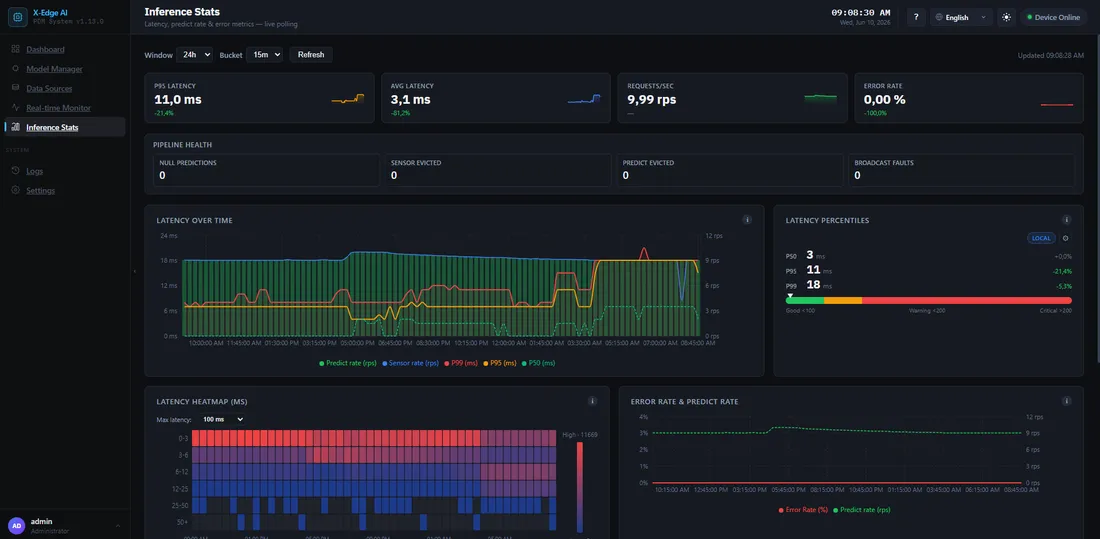
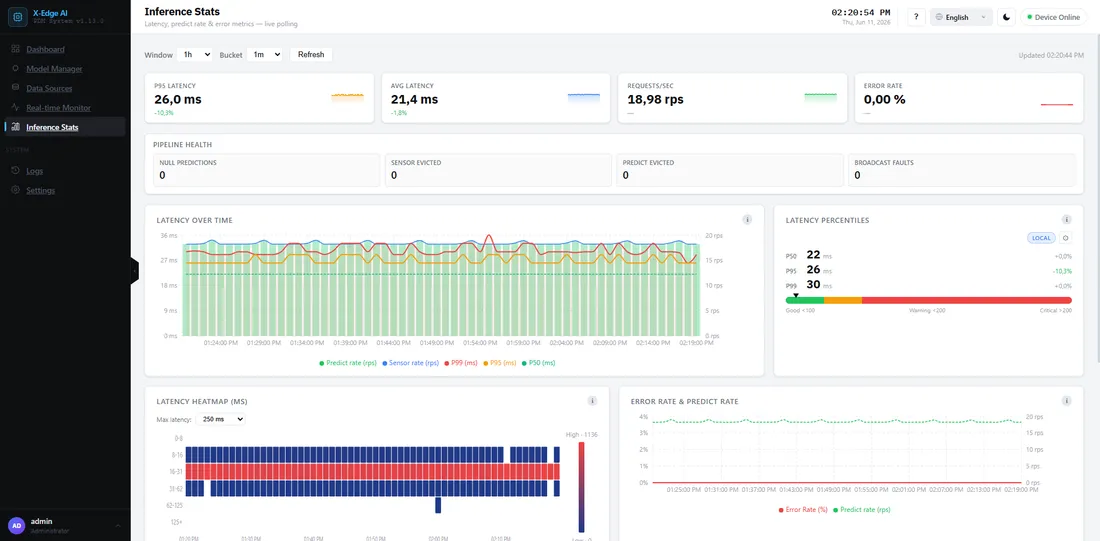
Bảng điều khiển Inference Stats cho thấy runtime của bạn đang hoạt động như thế nào theo thời gian thực: độ trễ, thông lượng (throughput), tỷ lệ lỗi, và thời gian được tiêu tốn ở đâu trong pipeline. Nó cập nhật liên tục khi một datasource đang truyền dữ liệu luồng.
Các chỉ số chính
Phần tiêu đề “Các chỉ số chính”- Phân vị độ trễ — p50 / p95 / p99 của thời gian suy luận đầu-cuối.
- Thông lượng (throughput) — số dự đoán mỗi giây.
- Tỷ lệ lỗi — phần các lần suy luận bị thất bại.
- Execution provider — suy luận đang chạy trên CUDA (CPU làm dự phòng). Một box GPU bị rớt về CPU sẽ hiển thị ở đây.
Phân tích độ trễ
Phần tiêu đề “Phân tích độ trễ”Mỗi lần suy luận được phân rã để bạn có thể thấy thời gian đi về đâu:
- Chờ hàng đợi — thời gian chờ trong hàng đợi yêu cầu
- Tiền xử lý — chuẩn hóa đầu vào
- Thực thi mô hình — thời gian suy luận thuần
- Hậu xử lý — giải mã đầu ra
Nếu độ trễ tăng, phần phân tích này cho bạn biết liệu bản thân mô hình chậm lại hay box bị bão hòa ở phía trên (upstream).
Điều khiển window và bucket
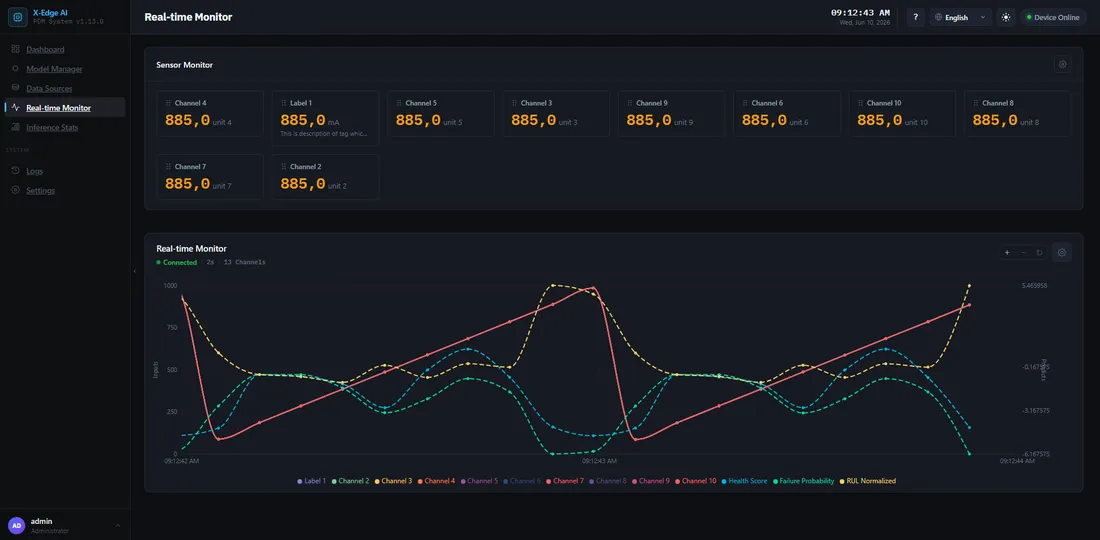
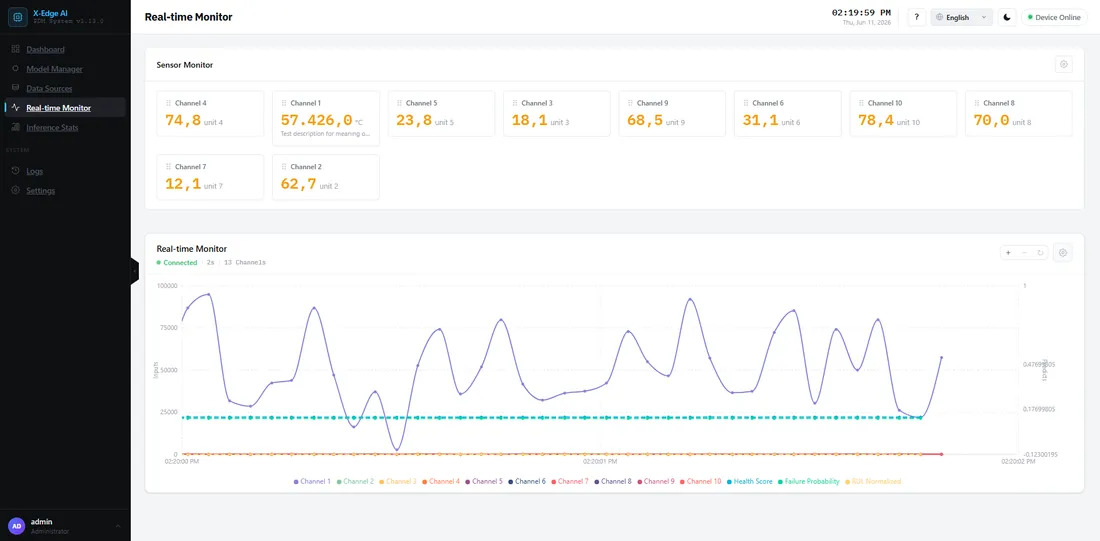
Phần tiêu đề “Điều khiển window và bucket”Hai điều khiển định hình khung nhìn thời gian:
- Window — bạn nhìn ngược lại bao xa (ví dụ
5m,1h,24h). - Bucket — mỗi điểm trên biểu đồ rộng bao nhiêu (ví dụ
10s,1m).
Số điểm là window ÷ bucket. Bảng điều khiển tự động khớp (snap) bucket khi
bạn thay đổi window để biểu đồ luôn dễ đọc — window rộng hơn dùng bucket rộng hơn.
Đọc một bản cài đặt mới
Phần tiêu đề “Đọc một bản cài đặt mới”Nếu biểu đồ báo “no data”, các lý do phổ biến nhất là:
- Chưa có luồng (flow) nào đang truyền dữ liệu. Bật một luồng, rồi bấm Start. Mỗi lúc chỉ một luồng chạy.
- Bản cài đặt vẫn đang khởi động — chờ đến window mẫu đầu tiên.
Thẻ sức khỏe
Phần tiêu đề “Thẻ sức khỏe”Theo dõi sức khỏe hệ thống trên Bảng điều khiển hiển thị một thẻ cho mỗi mục GPU, CPU, bộ nhớ, lưu trữ và dịch vụ. Mỗi thẻ và mỗi dòng hiển thị trạng thái cảnh báo hoặc nghiêm trọng khi một giá trị vượt ngưỡng. Phần này nói về các giá trị bộ nhớ, lưu trữ và bộ nhớ GPU.
Sức khỏe bộ nhớ
Phần tiêu đề “Sức khỏe bộ nhớ”Thẻ này đo toàn bộ máy, không phải một container.
- RAM — bộ nhớ đang dùng trên box. Đồng hồ đo hiển thị cùng giá trị.
- Swap — swap đang dùng. Trên Jetson, swap là zram: vùng nén nằm ngay trong RAM.
- Inference — bộ nhớ của container inference, so với giới hạn bộ nhớ đặt cho container đó. Nếu container chạm giới hạn, hệ thống dừng và khởi động lại nó, và suy luận tạm dừng cho đến khi container chạy lại.
Sức khỏe lưu trữ
Phần tiêu đề “Sức khỏe lưu trữ”Thẻ này đo ổ đĩa chứa cơ sở dữ liệu.
- Đĩa — dung lượng đã dùng và tổng dung lượng. Đồng hồ đo hiển thị phần trăm đã dùng.
- Còn trống — dung lượng trống tính bằng GB.
- Cơ sở dữ liệu — kích thước tệp cơ sở dữ liệu.
Trạng thái dựa trên dung lượng trống, tính cả theo phần trăm và theo GB. Chỉ dùng phần trăm sẽ sai lệch trên đĩa lớn, chỉ dùng GB sẽ sai lệch trên đĩa nhỏ. Ngưỡng GB chừa chỗ cho một lần cập nhật: cập nhật tạo bản sao lưu cơ sở dữ liệu và giải nén gói mới, cần tổng cộng vài GB.
Bộ nhớ GPU
Phần tiêu đề “Bộ nhớ GPU”Dòng bộ nhớ trên thẻ Sức khỏe GPU được đặt tên theo thứ nó đo:
- Bộ nhớ (dùng chung RAM) — GPU không có bộ nhớ riêng và dùng RAM hệ thống. Jetson TX2 thuộc trường hợp này, nên dòng này và dòng RAM trên thẻ bộ nhớ đọc cùng một bộ nhớ.
- VRAM — bộ nhớ riêng trên một card đồ họa rời.
Ngưỡng
Phần tiêu đề “Ngưỡng”| Giá trị | Cảnh báo | Nghiêm trọng |
|---|---|---|
| RAM | trên 80 % | trên 90 % |
| Swap | trên 75 % | không bao giờ nghiêm trọng khi đứng riêng |
| Container inference | trên 80 % giới hạn | trên 90 % giới hạn |
| Dung lượng trống | dưới 15 % hoặc dưới 10 GB | dưới 5 % hoặc dưới 3 GB |
| Bộ nhớ GPU | trên 80 % | trên 90 % |
Cần làm gì
Phần tiêu đề “Cần làm gì”- Cảnh báo hoặc nghiêm trọng về bộ nhớ — kiểm tra dòng Inference trước. Một container nằm sát giới hạn có nguy cơ bị khởi động lại. Tìm mô hình hoặc Flow vừa thay đổi, và so sánh với Inference Stats ở trên.
- Cảnh báo lưu trữ — kiểm tra dòng Cơ sở dữ liệu. Nếu cơ sở dữ liệu lớn, xem
Đĩa đầy / cơ sở dữ liệu phình không giới hạn.
Mỗi lần cập nhật cũng giữ lại vài bản sao lưu cơ sở dữ liệu; xem
AIBOARD_BACKUP_KEEPtrong Biến môi trường. - Nghiêm trọng về lưu trữ — giải phóng dung lượng trước lần cập nhật tiếp theo. Ở mức này, một lần cập nhật có thể không đủ chỗ để hoàn tất.
Nhật ký
Phần tiêu đề “Nhật ký”Trang Nhật ký truyền trực tiếp các dòng log từ backend và dịch vụ suy luận. Lọc theo nguồn, cấp độ hoặc văn bản, và tắt TRỰC TIẾP để tạm dừng luồng.
Các dòng được ghi trong khi đọc hoặc ghi một datasource mang thêm ngữ cảnh bên dưới thông điệp:
- ↓ Tên (#id) — datasource đầu vào mà dòng đó thuộc về.
- ↑ Tên (#id) — datasource đầu ra mà dòng đó thuộc về.
- #xxxxxxxx — tick. Một tick là một chu kỳ: đọc đầu vào, gọi engine, và mỗi lần ghi đầu ra.
Tên datasource được hiển thị như lúc dòng log được ghi.
Nhấp vào chip tick để xem mọi dòng của tick đó, từ lần đọc đầu vào đến mỗi lần ghi đầu ra. Chế độ trực tiếp tạm dừng để các dòng mới không đẩy tick ra khỏi màn hình. Thẻ Tick xuất hiện trên thanh lọc. Đóng thẻ đó, hoặc bật lại TRỰC TIẾP, để quay về tất cả các dòng.
Dừng ngoài ý muốn và phục hồi sau khởi động lại
Phần tiêu đề “Dừng ngoài ý muốn và phục hồi sau khởi động lại”Thứ bạn bật là một luồng (một đầu vào, một mô hình, các đầu ra của nó), và mỗi lúc chỉ một luồng chạy. Để phục hồi sau bất kỳ lần dừng nào dưới đây, hãy sửa nguyên nhân, tắt rồi bật lại luồng, sau đó bấm Start.
- Suy luận đã dừng mà không ai bấm Stop? Hãy kiểm tra Thông báo. Một lần dừng bạn không yêu cầu sẽ tạo một cảnh báo mức Warning ở đó thay vì lỗi âm thầm. Nguyên nhân: ai đó đã bật một luồng khác, xoá luồng đang bật, hoặc chỉnh sửa nguồn dữ liệu đầu vào mà luồng dùng trong lúc nó đang chạy.
- Banner suy luận đã dừng. Nếu suy luận gặp lỗi khi đang truyền dữ liệu, ví dụ một tag ngừng phản hồi, bảng điều khiển hiển thị banner Suy luận đã dừng kèm lý do. Luồng vẫn hiển thị là đang bật, nhưng mô hình đã bị gỡ.
- Sau khi backend khởi động lại, luồng đang bật tự trở về Ready khi dịch vụ suy luận báo cáo khỏe mạnh. Việc truyền dữ liệu không tự tiếp tục. Hãy bấm Start. Nếu khôi phục thất bại, ví dụ vì đầu vào chưa kết nối được, luồng vẫn bật và suy luận ở trạng thái chờ. Tắt rồi bật lại luồng để thử lại.
- Sau khi dịch vụ suy luận khởi động lại trong lúc đang truyền dữ liệu, hộp tự khôi phục luồng và tiếp tục truyền dữ liệu. Nó thử tối đa ba lần. Nếu vẫn không được, một thông báo lỗi cho biết suy luận đã dừng.
Nếu có gì đó trục trặc
Phần tiêu đề “Nếu có gì đó trục trặc”- Biểu đồ rỗng, rớt về CPU ngoài dự kiến, hoặc tỷ lệ lỗi tăng — xem runbook Khắc phục sự cố.